You may have individuals who use Event Registration that are not currently in your database. There are two ways to create these new records from Registration Entry.
Create from Registration
The quickest path to create Membership and Giving Unit records is to use the Create from Registration feature. When you use this feature, an Address, Individual, and Giving Unit record will be created.
-
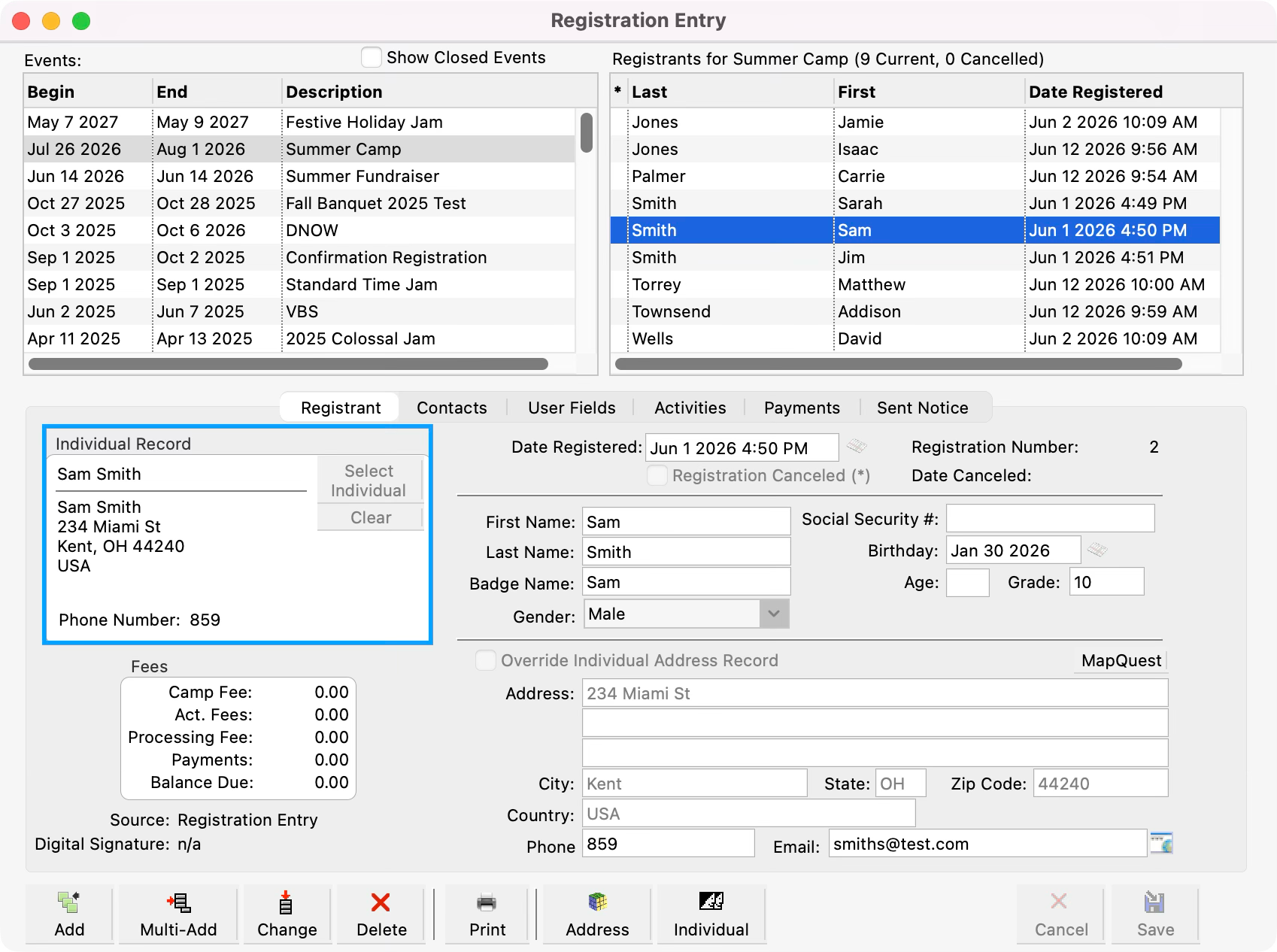
From the Registration Entry window, select the name of your Event to see a list of registrants. Then, for a registrant not currently tied to an Individual record, click to highlight their name, and click Change.

If an individual is tied to an Individual record, you will see that record in the Individual record pane.
-
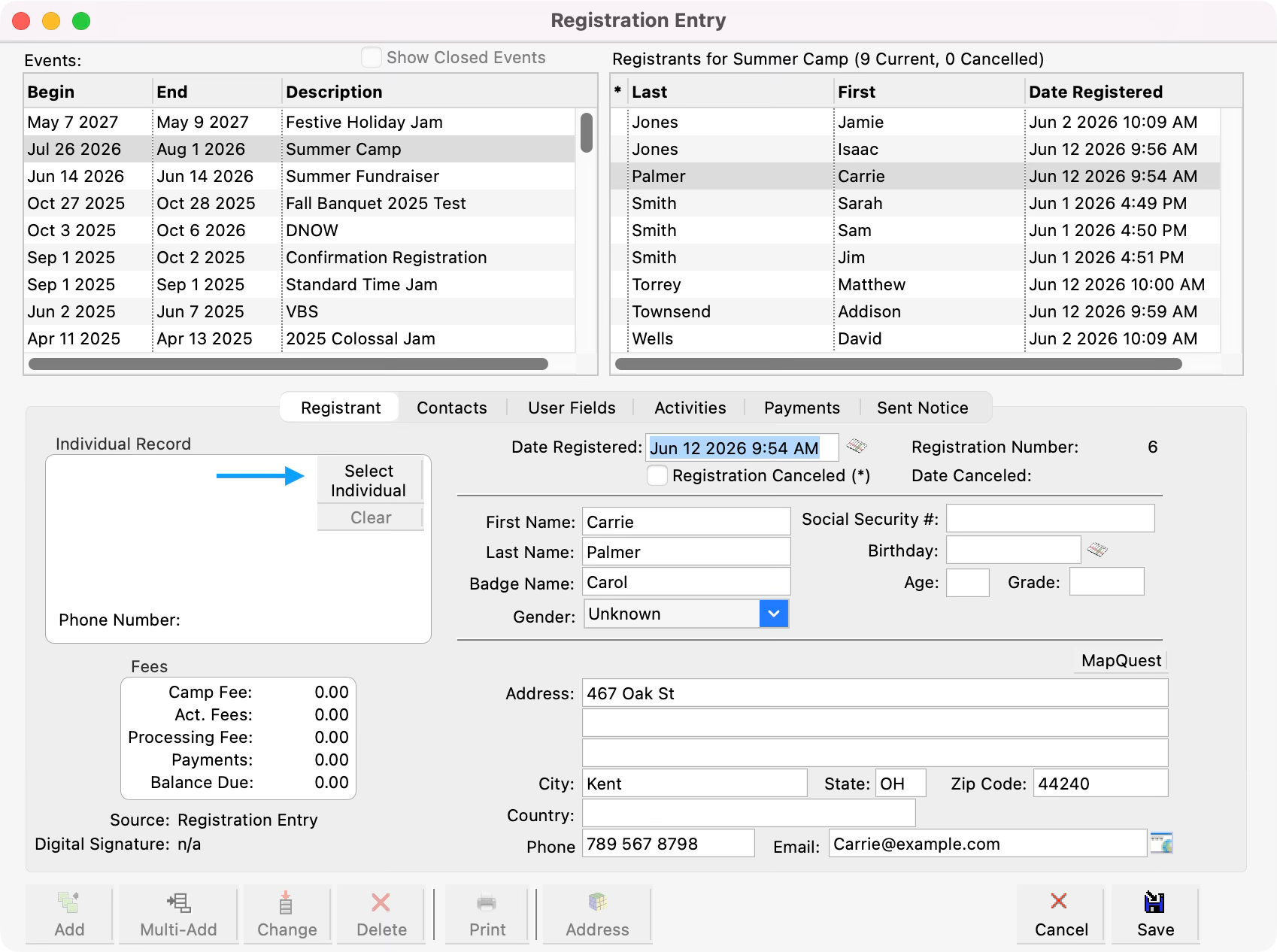
Click the Select Individual button in the Individual Record pane.
-
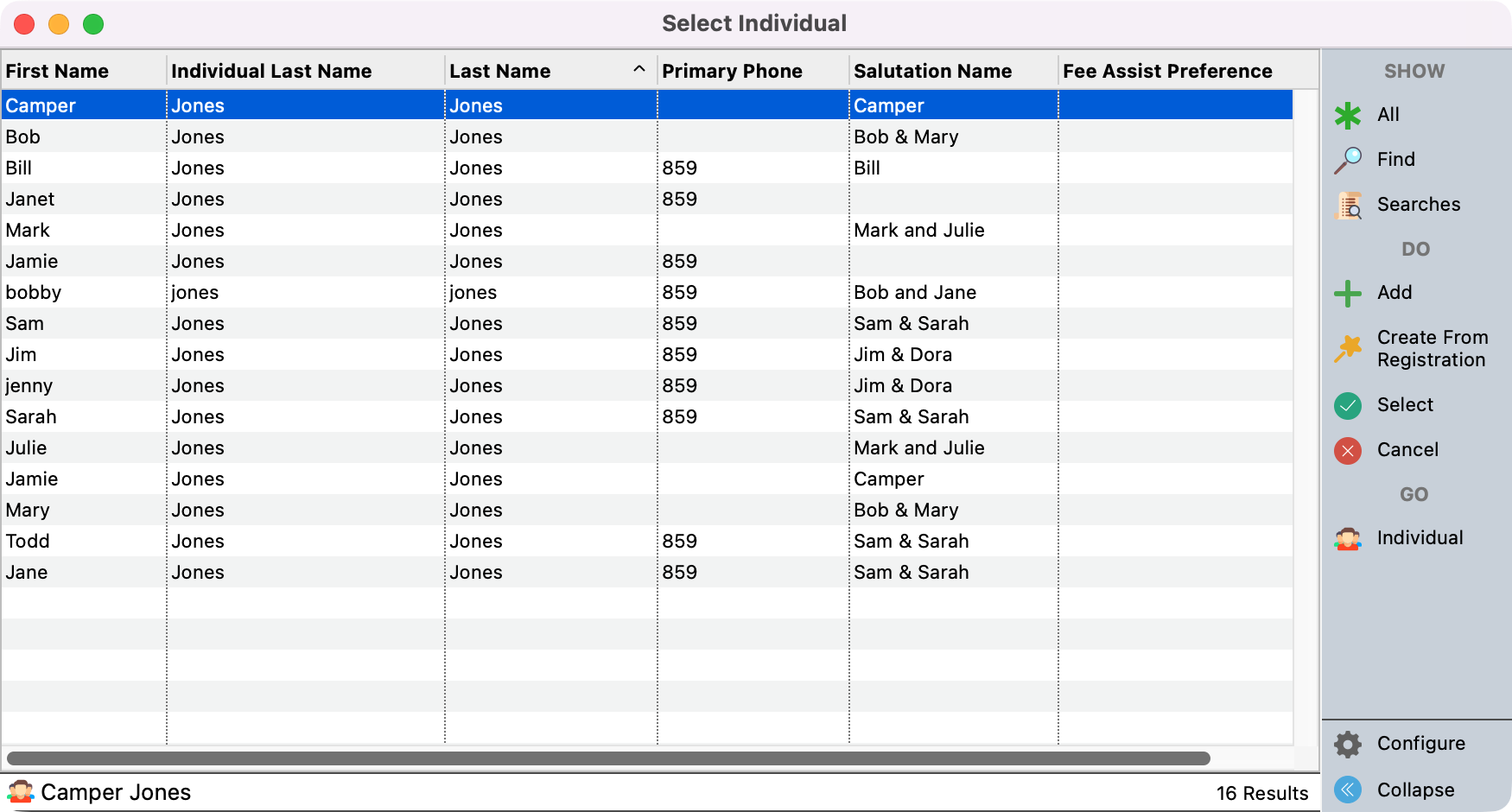
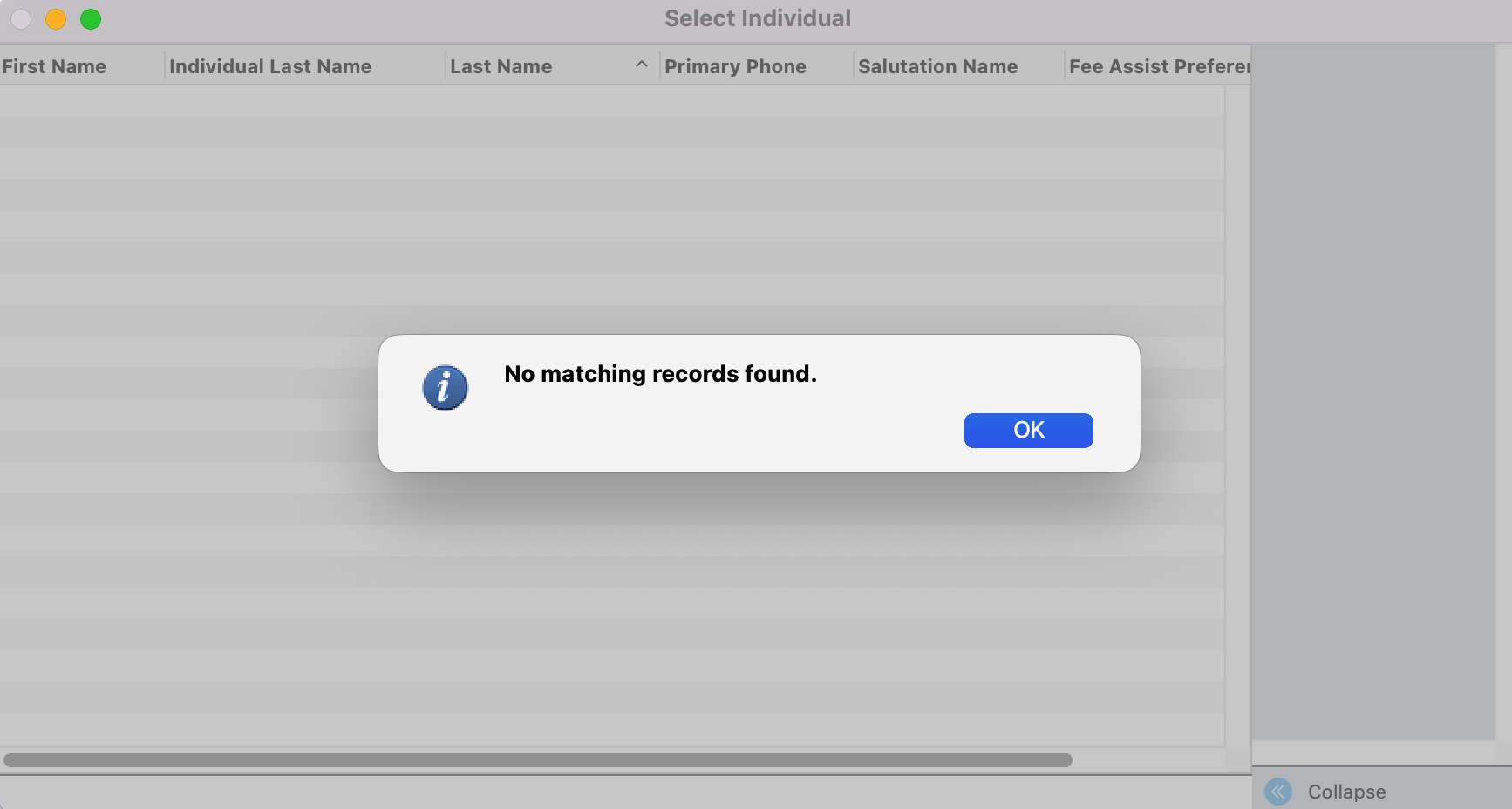
The Select Individual window will open. CDM+ automatically tries to match the details from the registrant record to records within CDM+. You will either see a list of potential Individual records to tie the registrant to, or a message saying no matching records found. If you get a pop-up click OK. Otherwise review the other potential records to confirm this individual does not currently exist in CDM+.
-
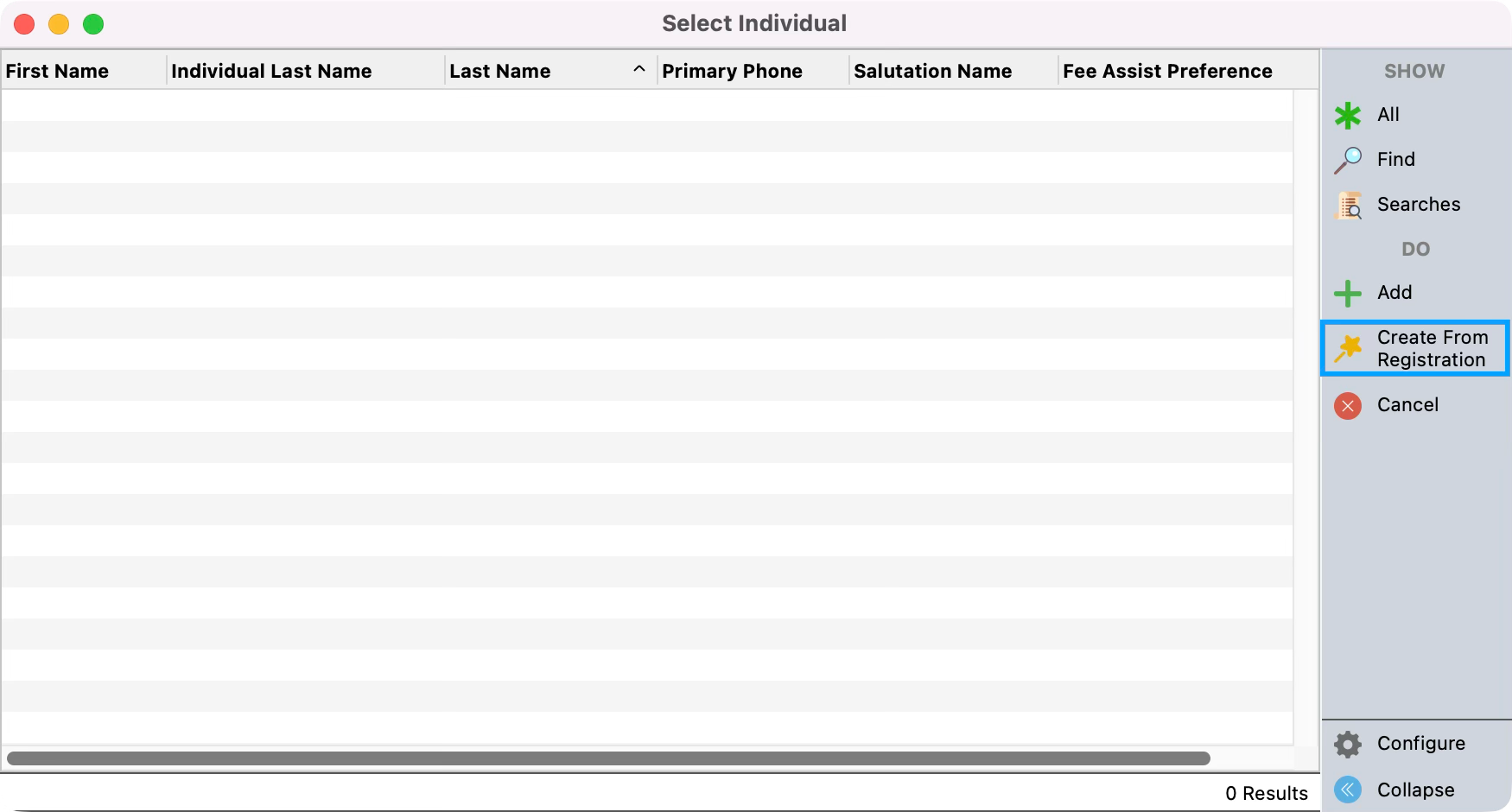
Once you confirm the registrant does not have an Individual record, click the Create from Registration button from the right sidebar.
-
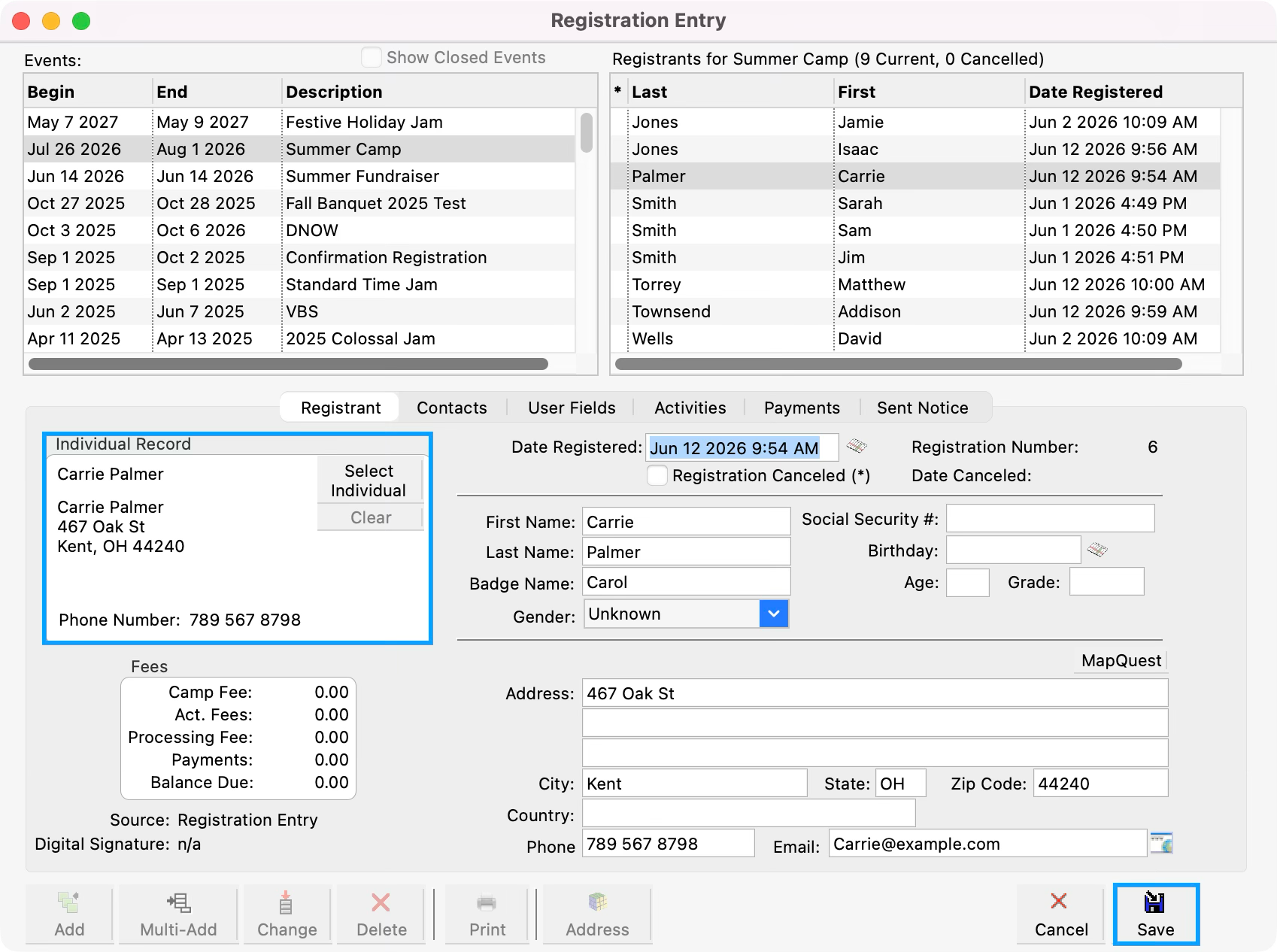
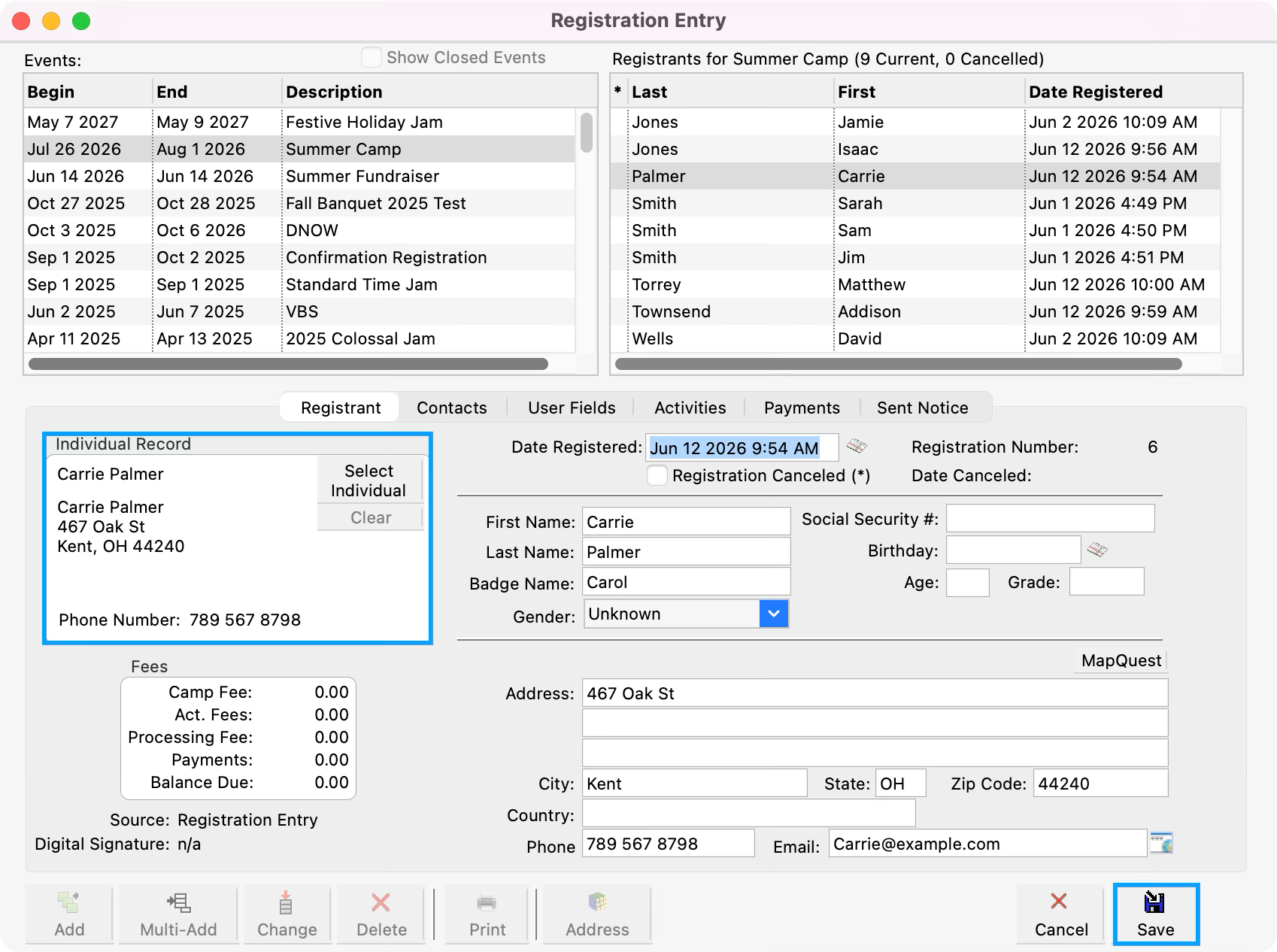
You will be able to see that an Individual record has been added to the Individual Record pane. Click Save.
-
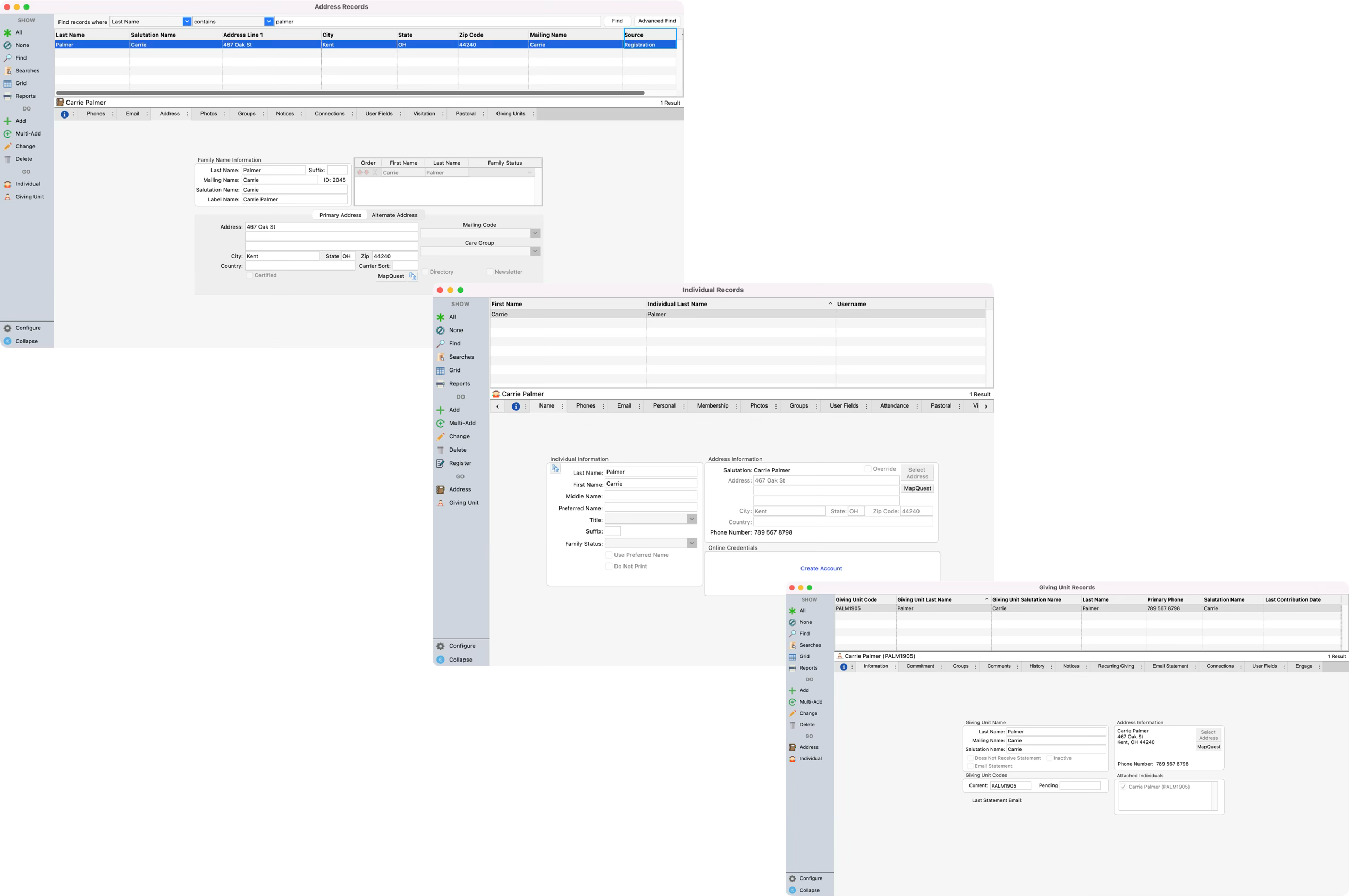
You can review the Membership and Giving Unit records created for the registrant. You’ll notice that the source for the creation of the Address record is Registration.
Using the Add Option
The second way to add Membership records is to use the Add button. Although more manual, all the details from the registration record will be automatically copied into the new Address, Individual, and Giving Unit records window. This approach allows you to tie an Individual to an existing Address record, or add more details on the Membership fields that are not a part of the Registration Entry window.
-
From the Registration Entry window, select the name of your Event to see a list of registrants. Then, for a registrant not currently tied to an Individual record, click to highlight their name, and click Change.
If an individual is tied to an Individual record, you will see that record in the Individual record pane.
-
Click the Select Individual button in the Individual Record pane.
-
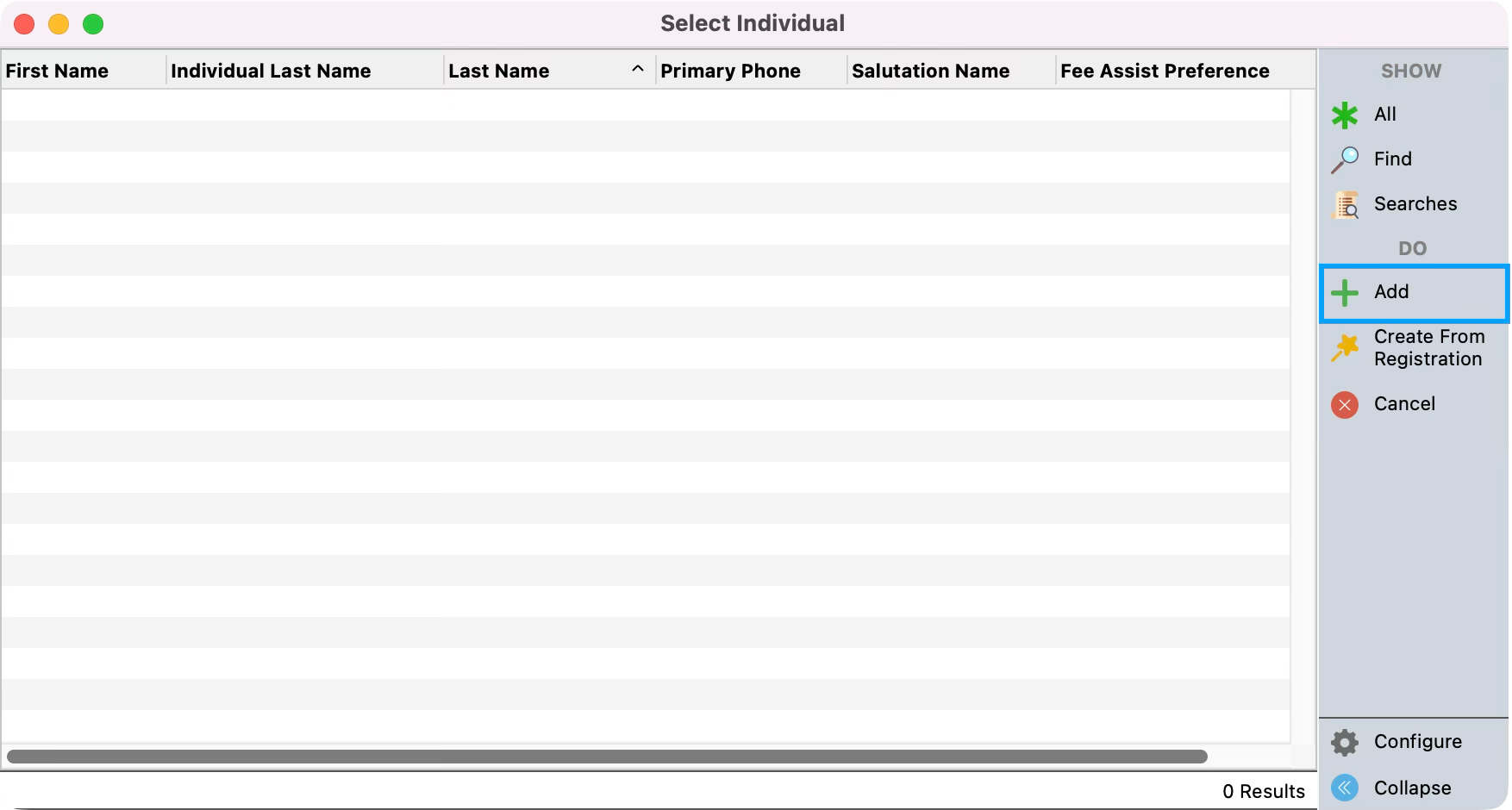
The Select Individual window will open. CDM+ automatically tries to match the details from the registrant record to records within CDM+. You will either see a list of potential Individual records to tie the registrant to, or a message saying no matching records found. If you get a pop-up click OK. Otherwise review the other potential records to confirm this individual does not currently exist in CDM+.
-
Once you confirm the registrant does not have an Individual record, click Add from the right sidebar.
-
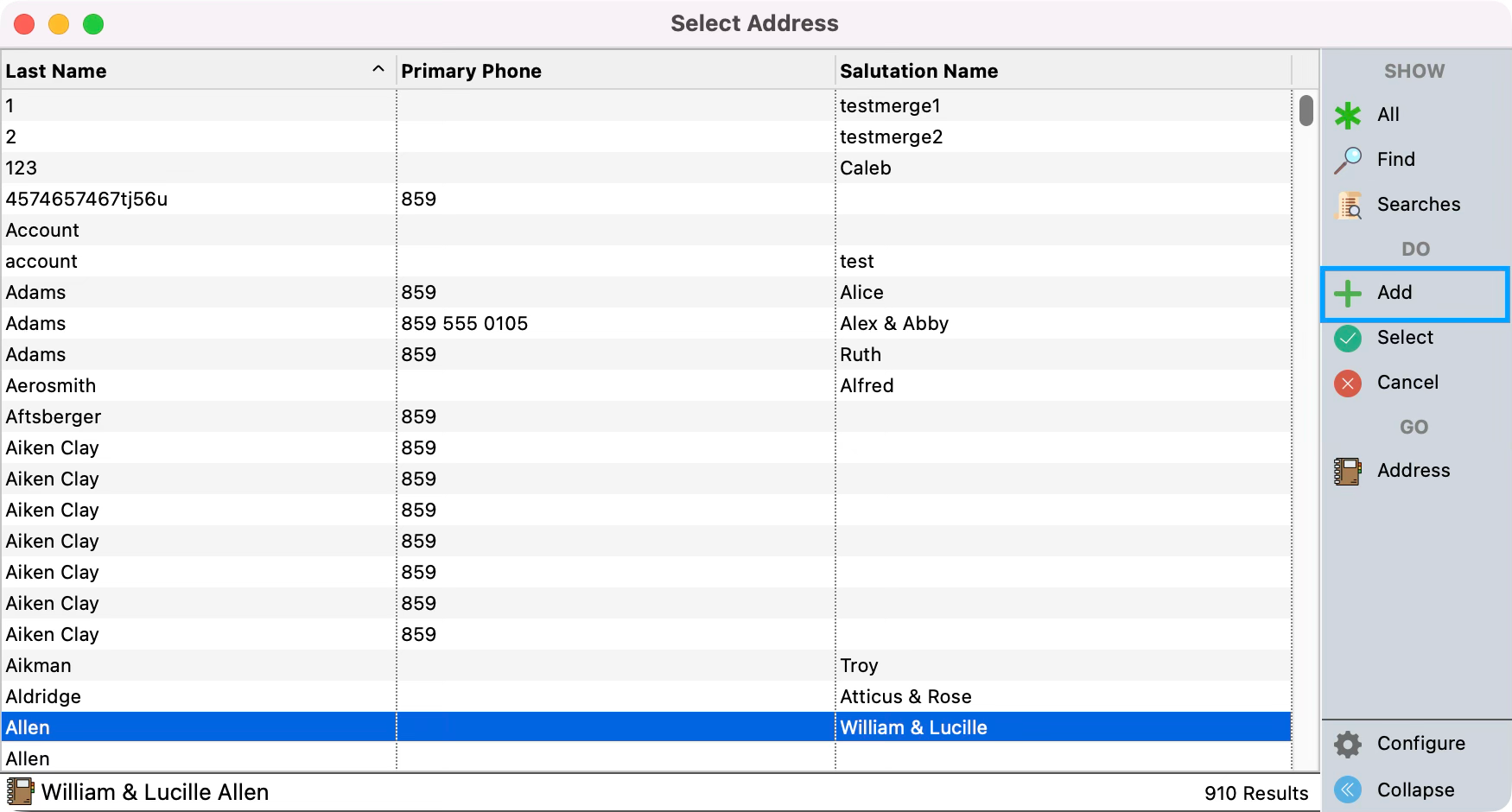
You will see the Select Address window open. CDM+ automatically tries to match the details from the registrant record to Address records within CDM+. You will see a list of potential Address records to tie the registrant to. Review the potential records to confirm this individual does not currently exist in CDM+. When you want to create a new Address record, click Add.
-
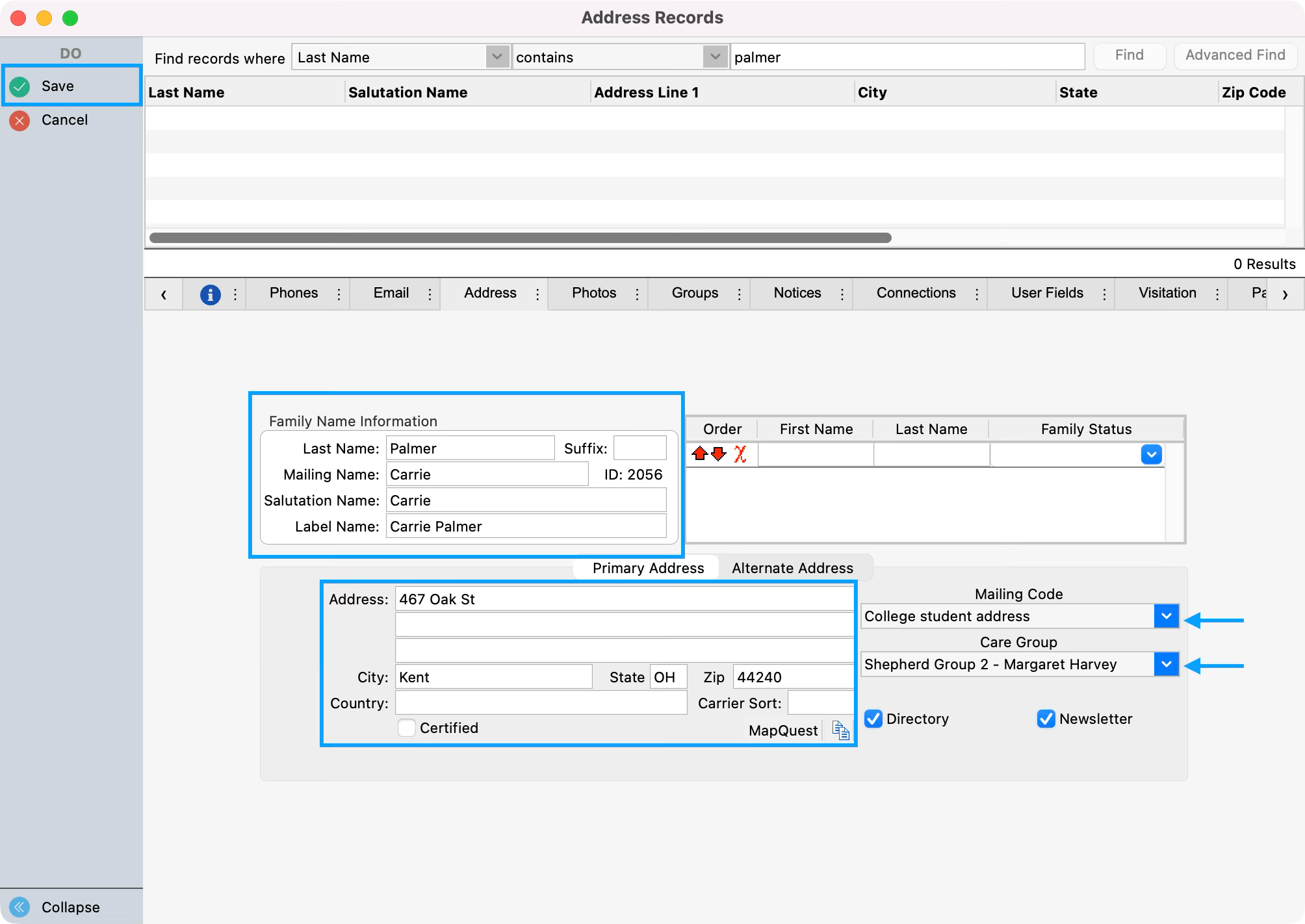
The details from Registration Entry will auto-populate to the same fields on the new Address record. You can add any additional details or settings to the record such as Mailing Code, Care Group, etc. Click Save.
-
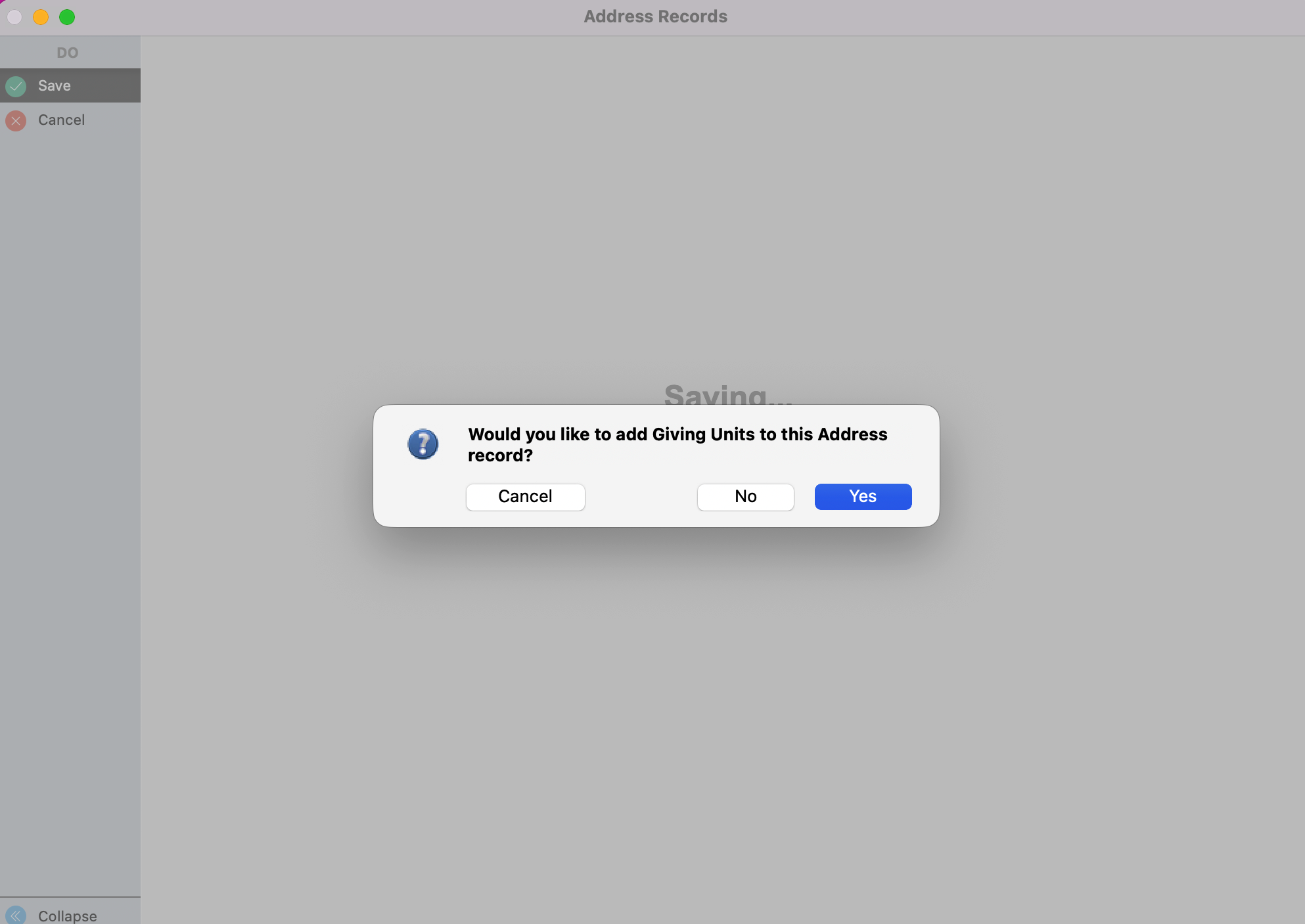
You will then get a pop-up asking if you want to add a Giving Unit record. Choose your desired option.
-
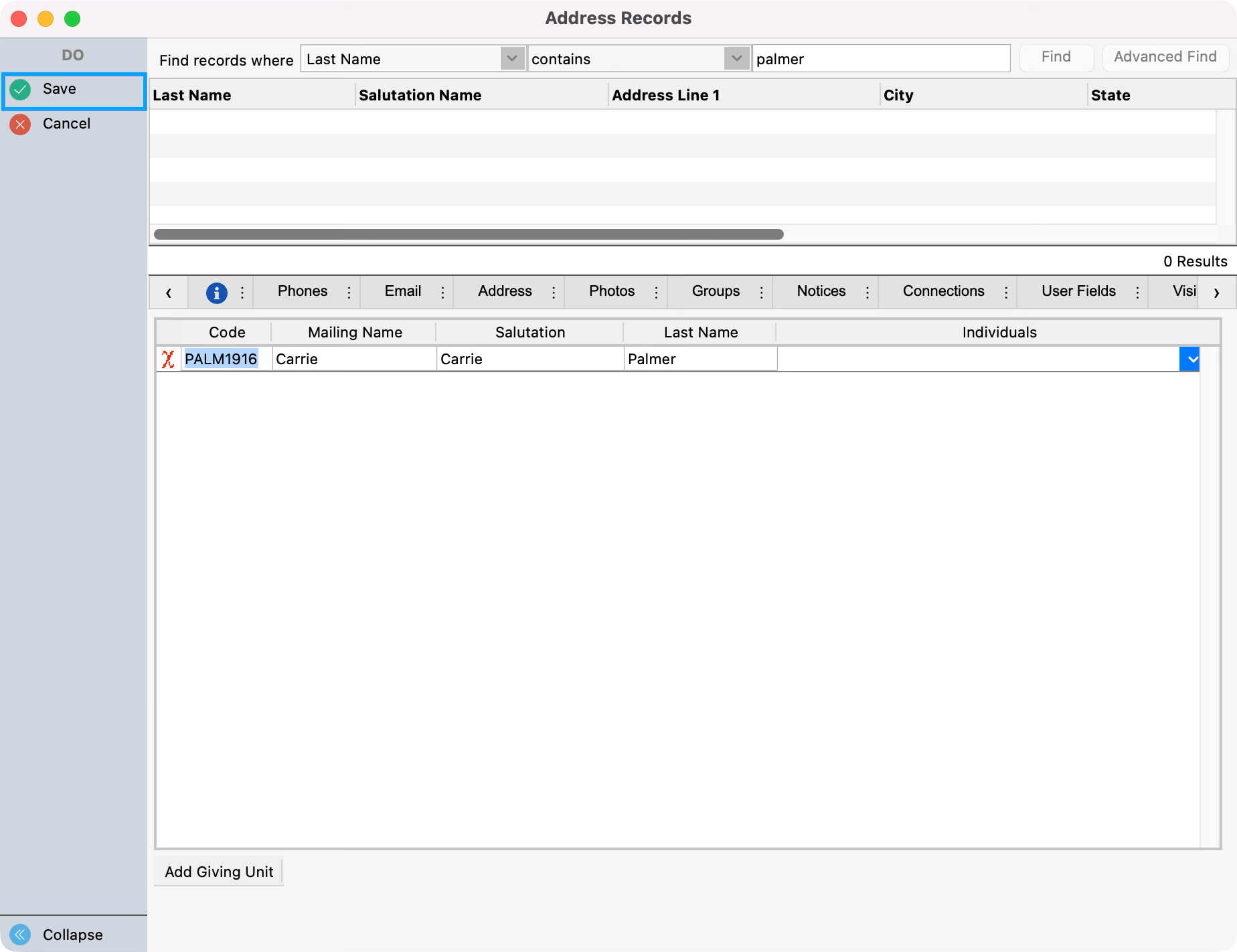
If you chose to add a Giving Unit, you will see it added under the Giving Unit tab of the Address record, click Save.
-
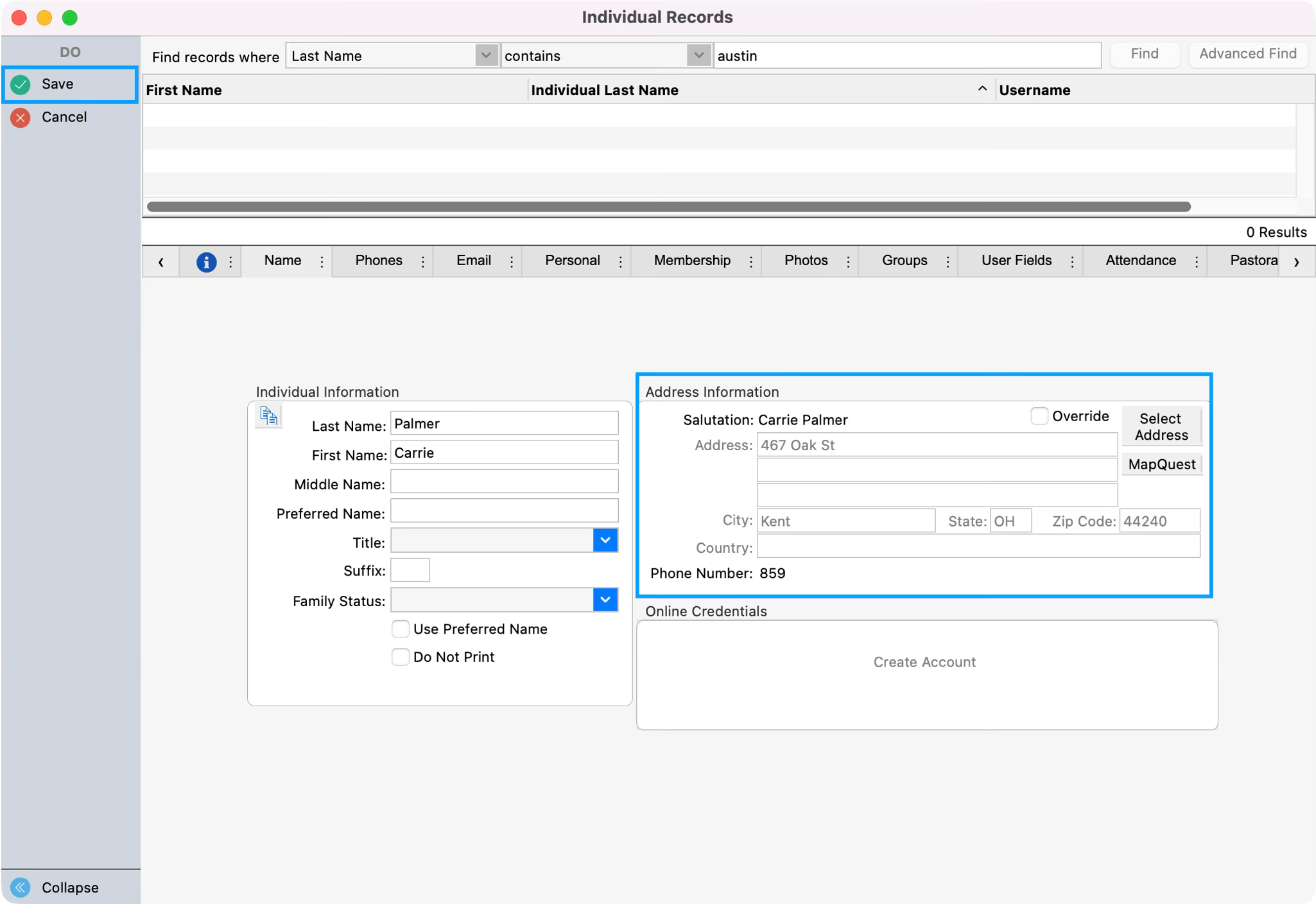
You will then be taken to the Individual record where you can see the Address record that is connected to this individual. Click Save.
-
You will then be taken back to the Registration Entry window where you can see the new Individual record connected to the registrant. Click Save.