When you are ready to send your email, (assuming you have already run a search to select your recipients,) click More Options.
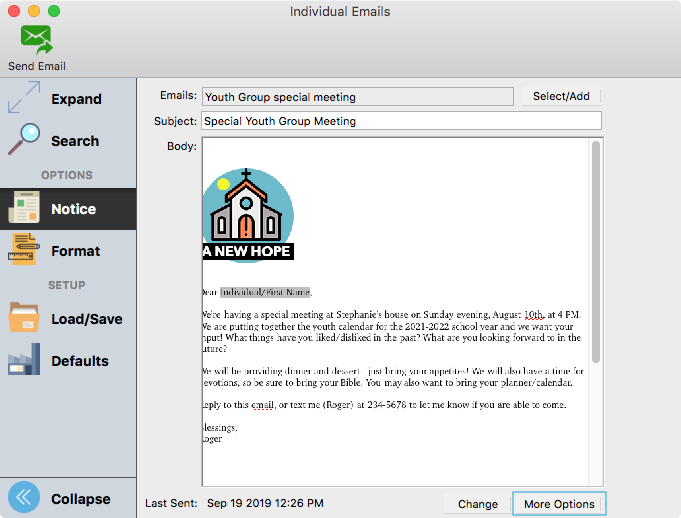
Edit Email Message Window
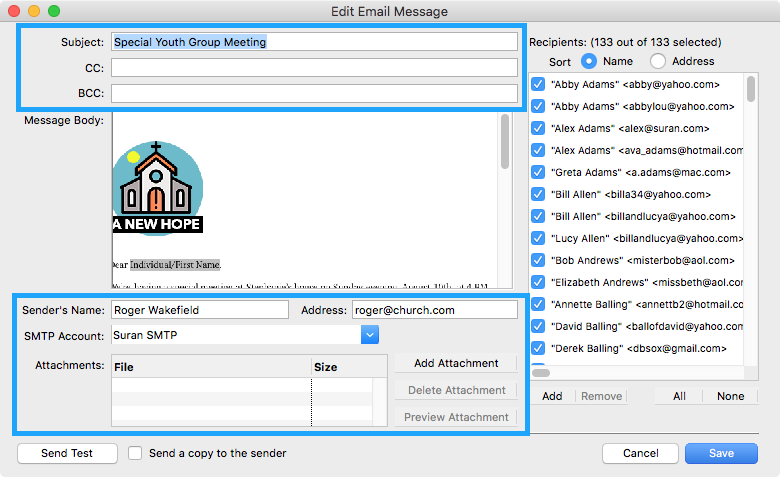
On this window, you can add/change the following information:
-
Add/Change Subject
-
CC field
-
BCC field
-
Add/Change Sender’s Name and Address (email address) by typing in the information in the fields and clicking Save when done.
-
SMTP Account if you use multiple accounts. If you are using the Suran SMTP Hosting account, then we recommend you do not change accounts.
-
Add Attachments
Click Save, then click Send on the main Notice window.
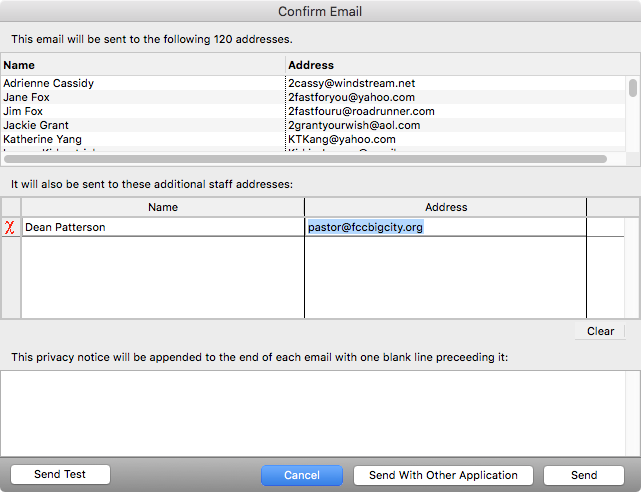
Confirm Email Window
In the window that opens, you can edit the staff recipient email address list and modify the privacy notice.
To check when a Notice was last sent, open the Select Notice window. The time and date will be on the same line as the Notice name.
Setting up staff email addresses and privacy notice
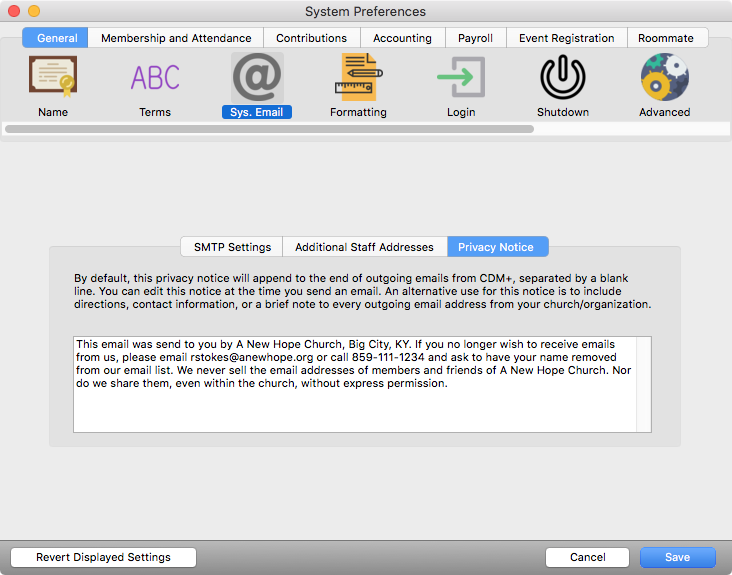
Go to CDM+ → Preferences → CDM+ System → General → Sys. Email on macOS or File → Preferences → CDM+ System → General → Sys. Email on Windows and click on the Additional Staff Addresses tab to set up this information.
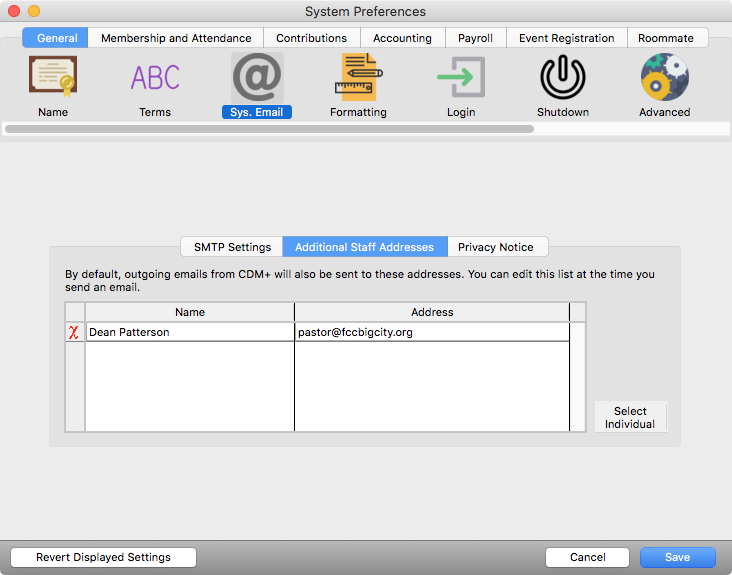
You can also include a privacy notice that will be displayed at the very bottom of your emails.