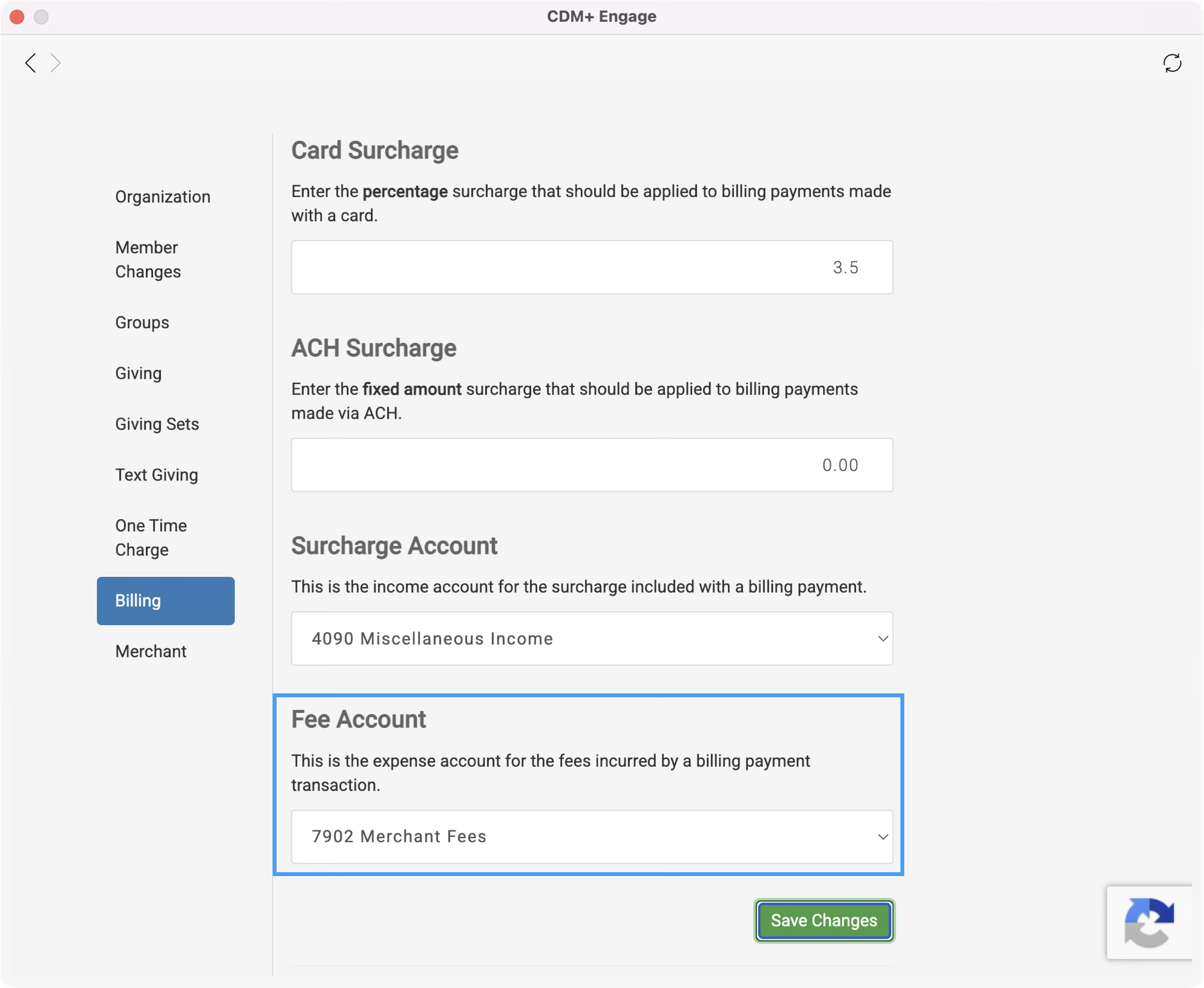
Use Engage Billing to access Accounts Receivable online, including making payments and viewing invoices and payments.
-
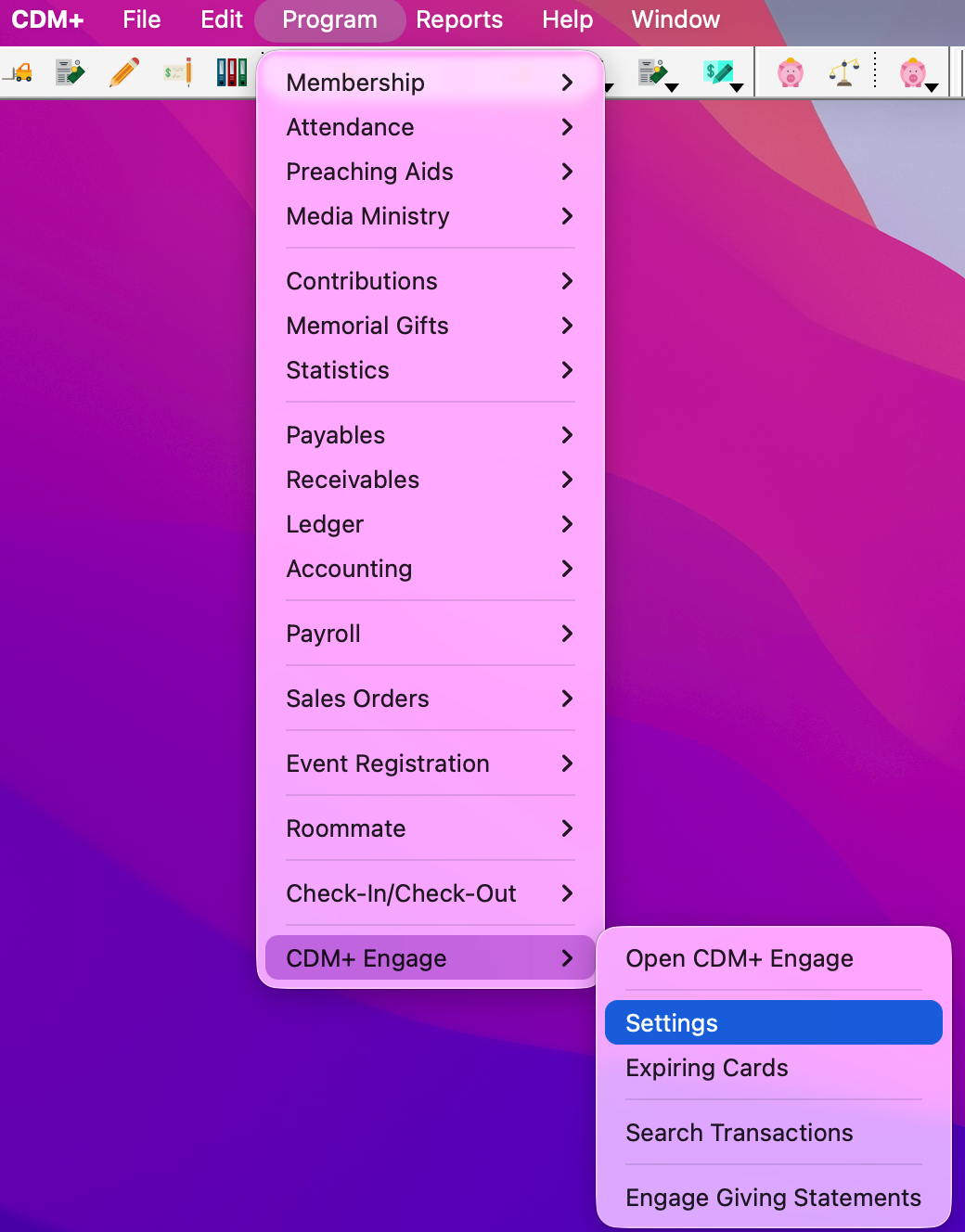
To access Engage Billing from within CDM+. Go to Program → CDM+ Engage → Settings.
-
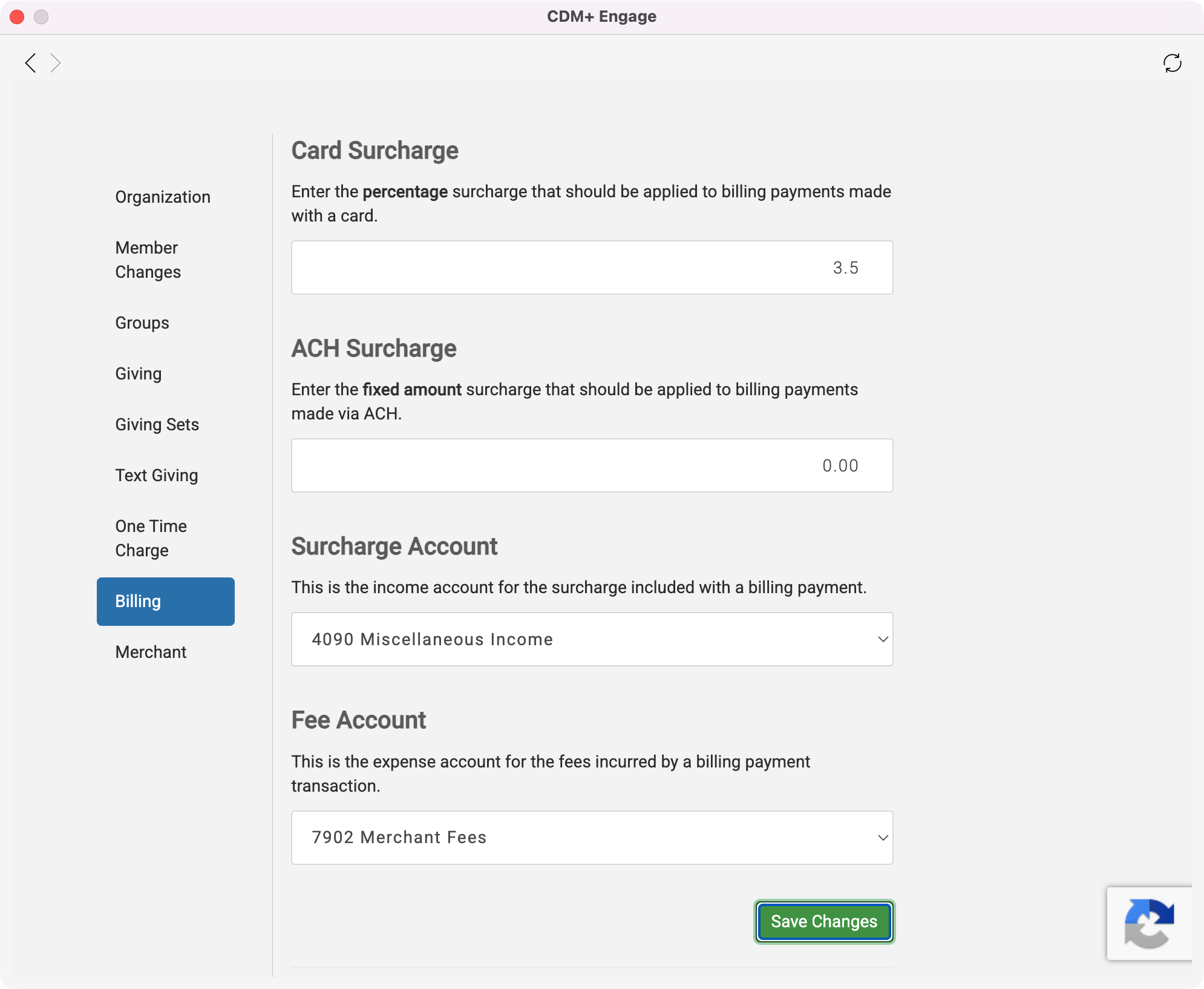
Click Billing from the left sidebar.
Surcharges
-
You can optionally add a processing fee or surcharge to online billing payments. Configure the following items to add a surcharge:
-
Credit Card Surcharge Percent will add an amount to payments made by credit card which is a percentage of the payment
-
ACH Surcharge Amount is a flat amount added to payments made by ACH
-
Surcharge Account is the income account where surcharges will be credits
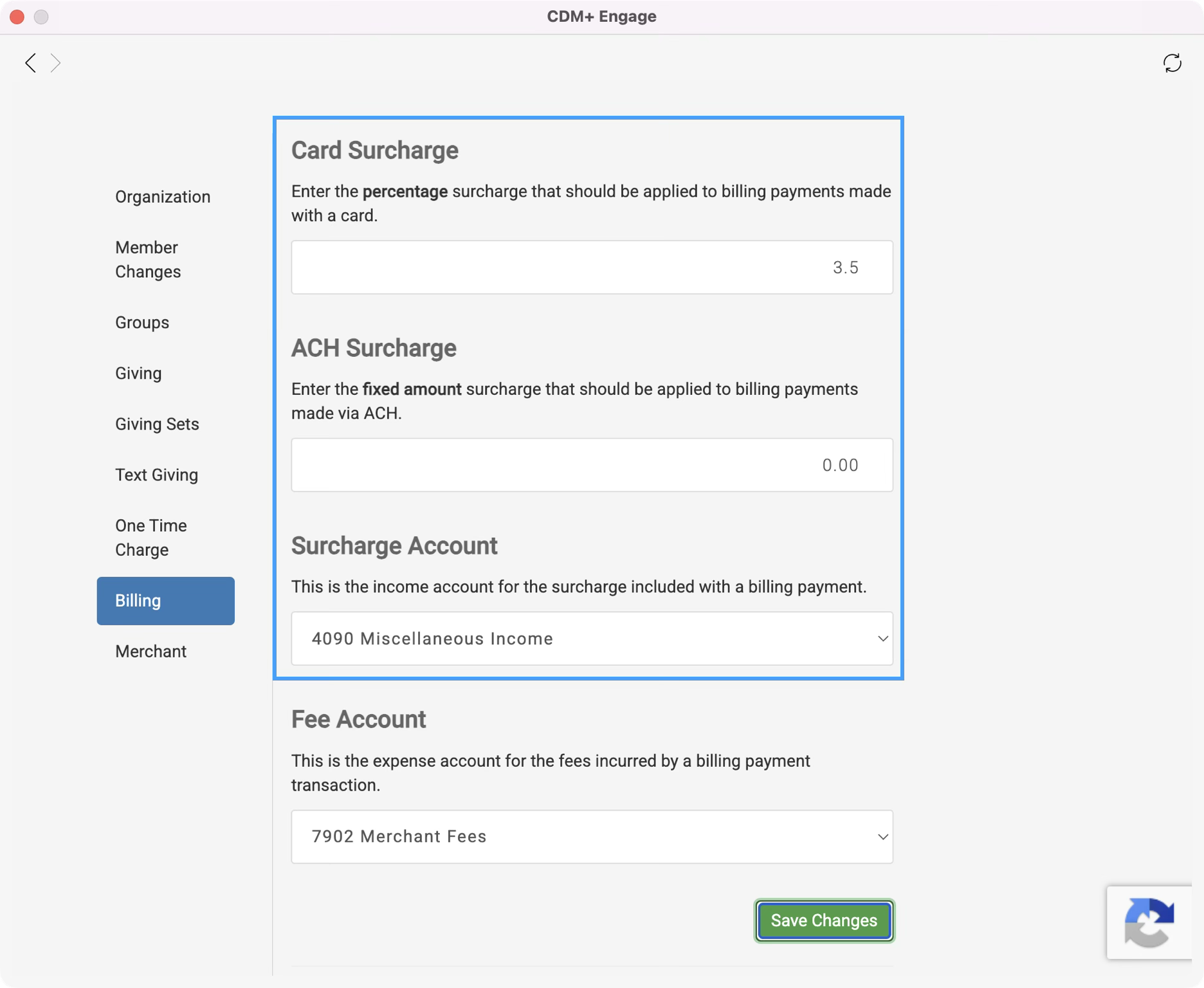
Fee Account
Select the expense account where transition fees will be debited when deposits are processed.