-
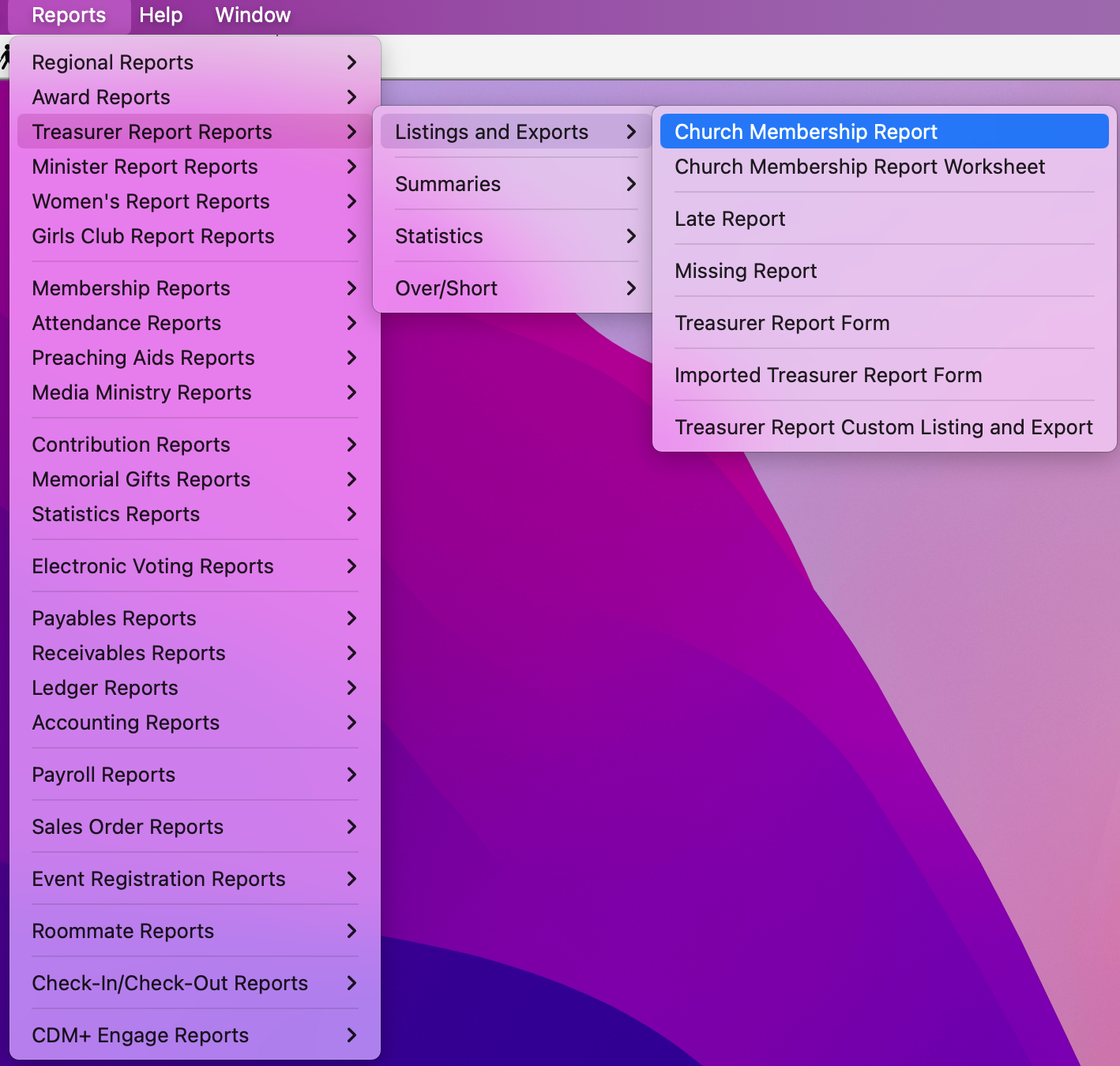
Go to Report → Treasurer Report Reports → Listings and Export → Church Membership Report.
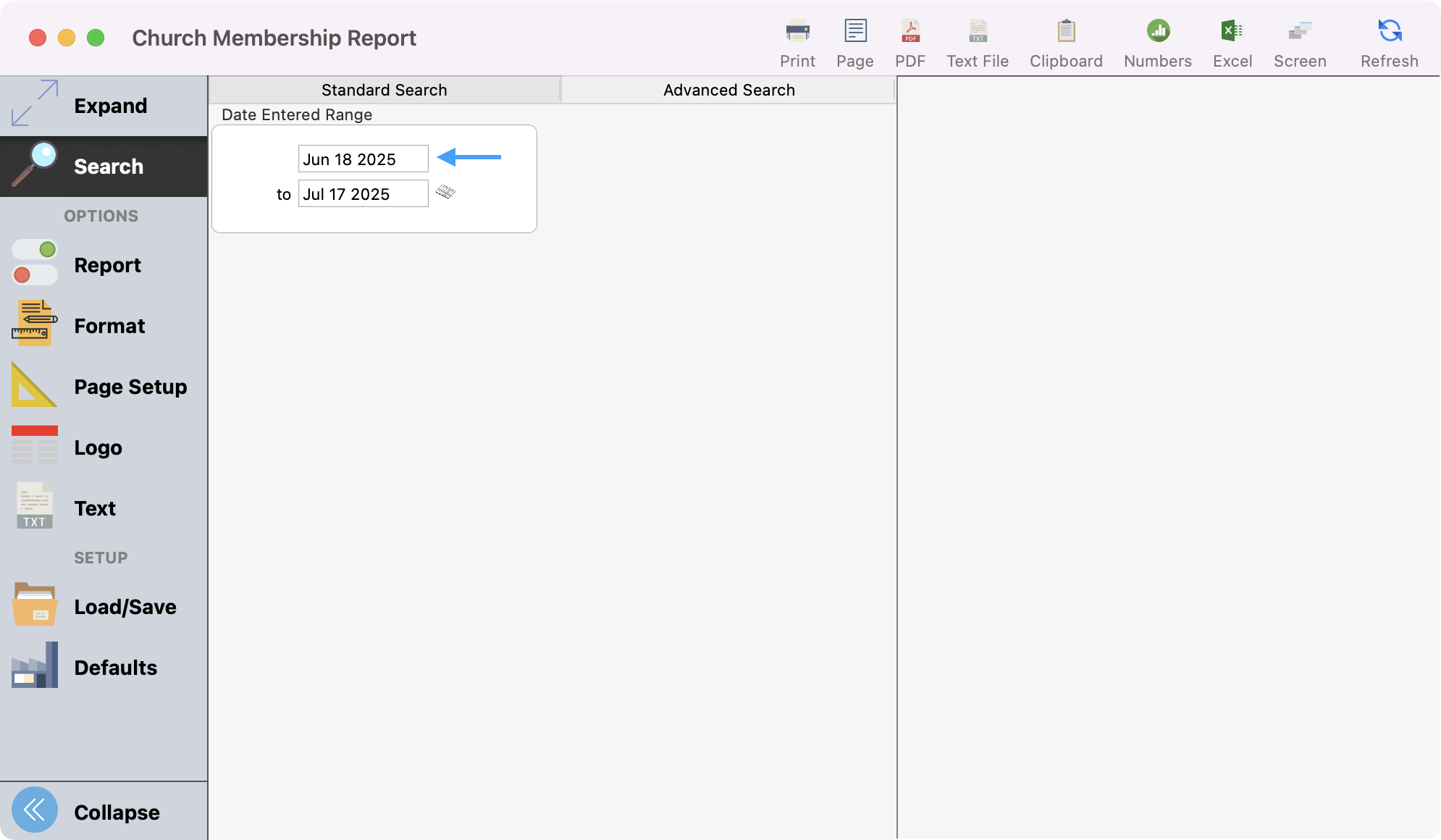
Note: This report is based on Date Entered.
-
The beginning date will be the day after your ending date from your last update.
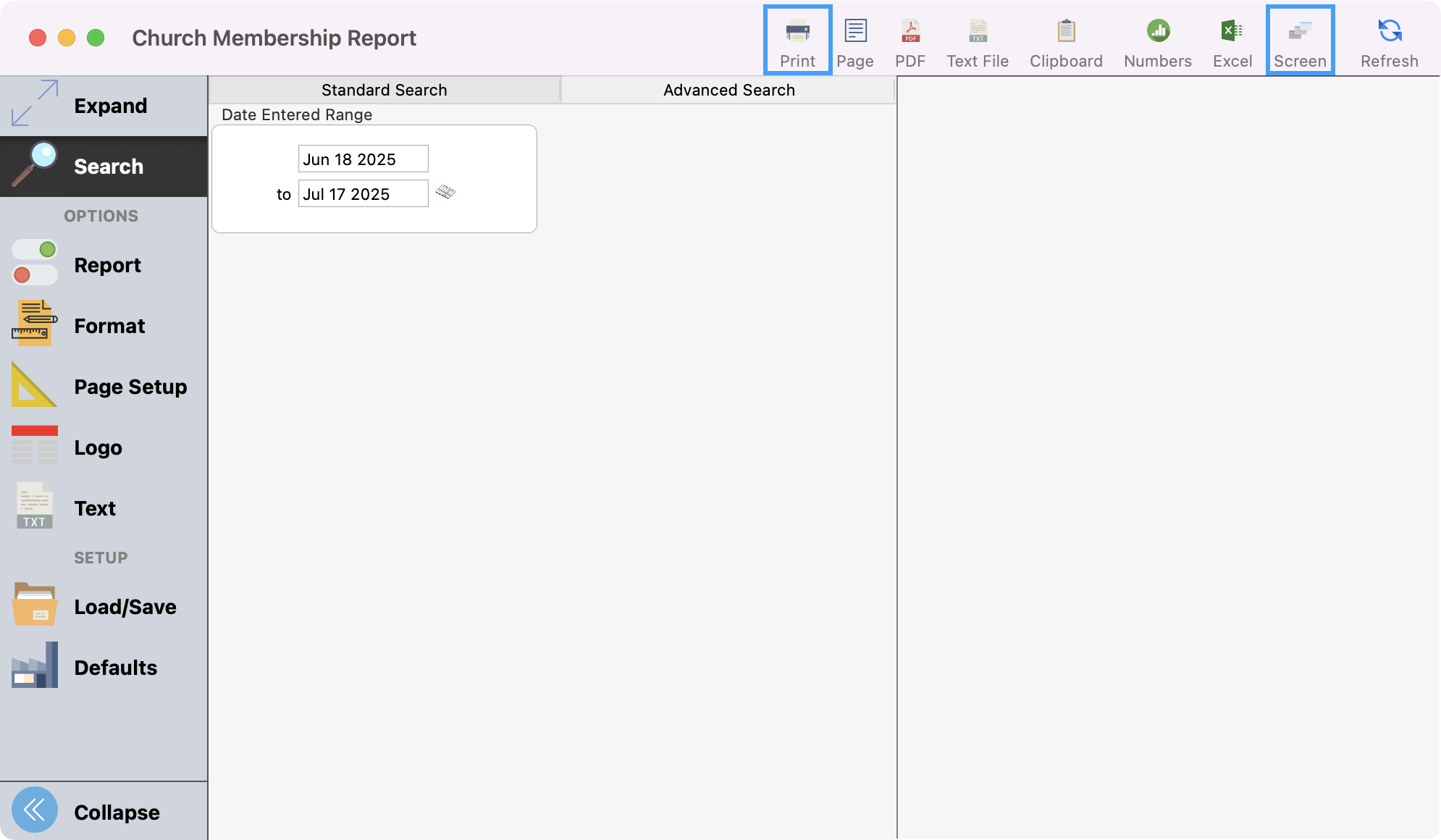
Note: You must either print this report or print to screen for you to get the update option. Simply clicking refresh will not give you the option to update.
-
Print to screen or printer.
-
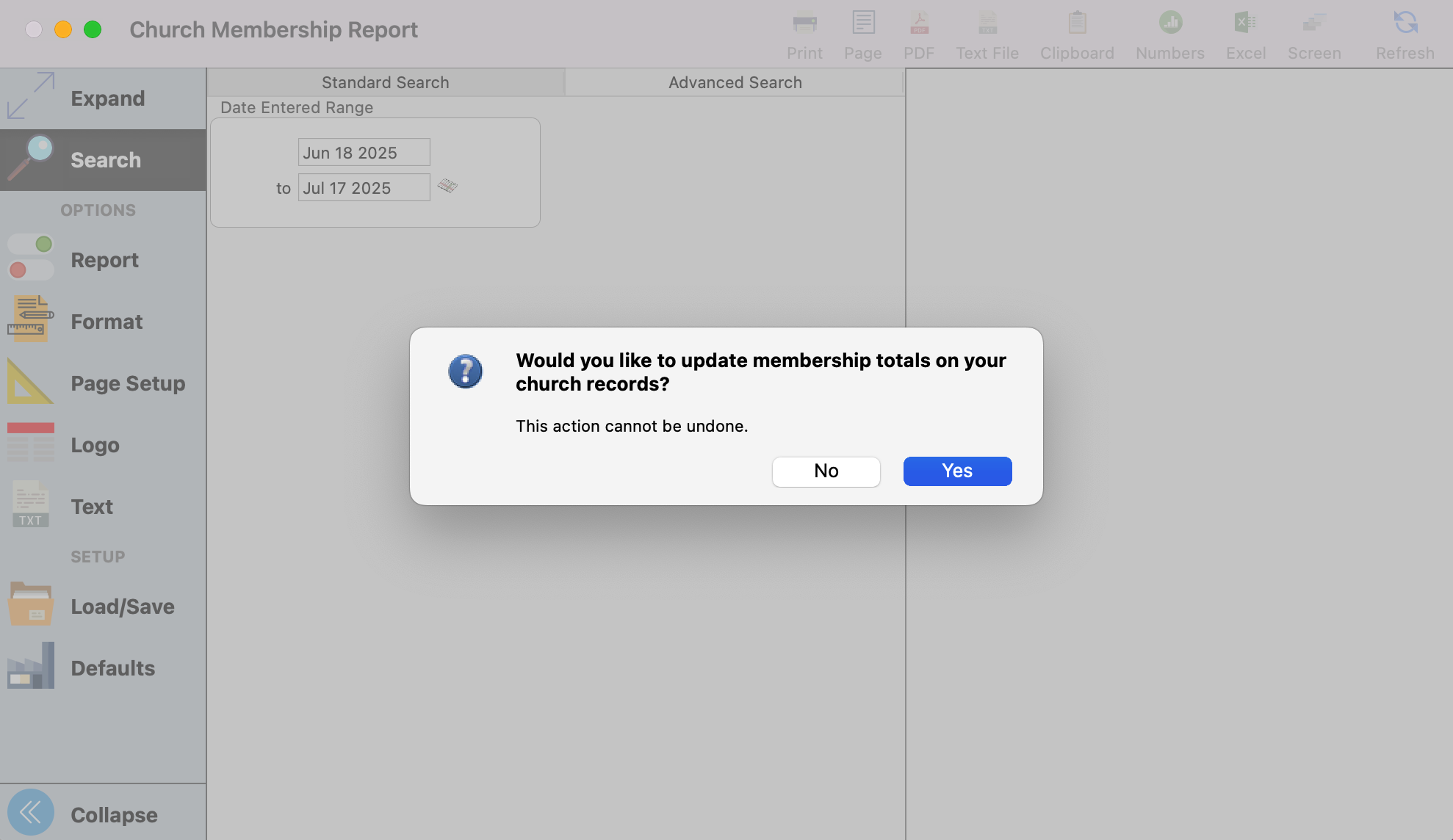
You will receive a report of all the activity along with the below dialog box. To update your totals, please choose Yes.
We recommend that you periodically compare the Current Membership total from the Stats tab in the Church record to the Membership totals that are reported on the Treasurer Reports.